App Help
A walkthrough of everything Lagr does on your iPhone — and, where it applies, on your Apple Watch. Use the toggles to hide Premium features or to add the Apple Watch steps.
- 1. Simple logger & your putter
- 2. Course logger
- 3. Practice logger & placement
- 4. Sessions & Live Activity
- 5. Training challenges
- 6. The Lagr Strength Index
- 7. Calibrating your stride
- 8. Units, accuracy & format
- 9. Stats & the Home tab
- 10. The Log tab
- 11. Settings, export & privacy
1Simple logger, and your putter Free
The free Super Simple Logger is just distance and result.
- Set the start distance with the − and + pad.
- Tap Hole if it dropped, or Miss and give the leave.
- Log the next putt; end the session when you are done.
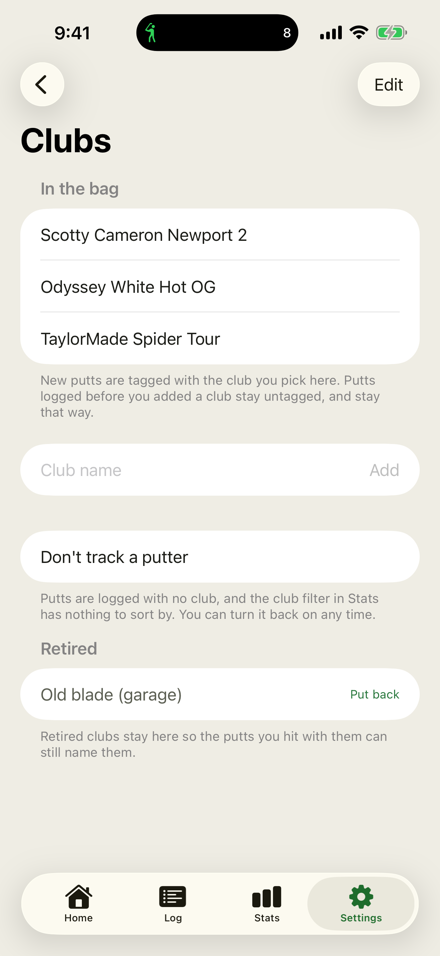
Your putter. In Settings → Clubs, add a putter and it tags new putts. Tap another to change it, or “Don’t track a putter” to deselect and log with no club.
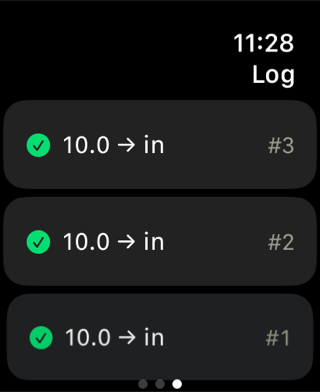
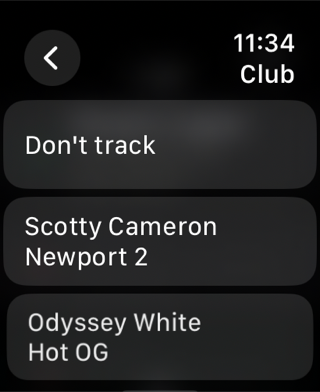
Apple Watch Log and pick a putter from the wrist
Dial the distance with the Digital Crown, tap Hole or Miss. In Settings → Clubs on the watch, pick which putter tags new putts (add and retire them on the phone).
2Course logger Premium
Course Green follows one ball start to finish — every putt begins where the last one stopped, just like a hole on the course.
- Set where the first putt starts and hit it.
- If it misses, place where it finished on the green; that becomes the next putt.
- Repeat until it drops — several steps to the hole is normal for a lag.
- The ball’s whole path is stored, so putts-to-hole-out is a real count.
Apple Watch Log the putts from the wrist
You can log each putt of a Course Green ball from the watch; the ball’s placement on the green happens on the phone.
3Practice logger & green placement Premium
Practice Green is the range drill: rake out three to five balls and hit them from the same spot.
- Set the start distance for the group.
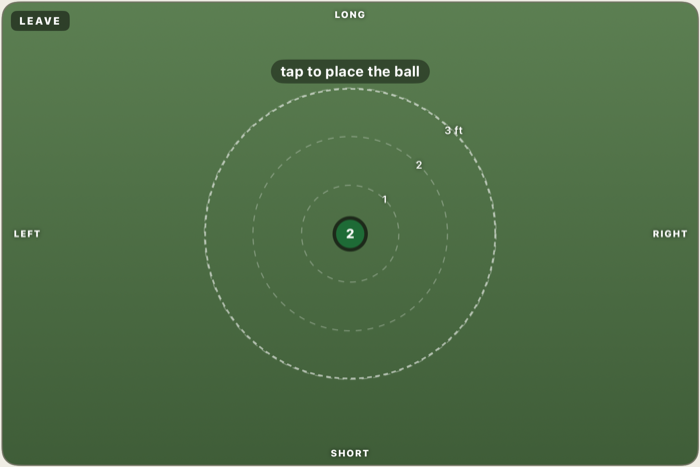
- For each ball, tap Hole, or Miss and place where it finished by tapping the green.
- The placements build a leave map — where your misses cluster.
Landscape. Turn the phone sideways for a bigger green and finer placement.
4Sessions & Live Activity Free
Every logger runs inside a session — start it, log your putts, then Finish session. Empty sessions are discarded, so nothing clutters your history.
Live Activity. While a session runs, iOS can show it on the Lock Screen and in the Dynamic Island, so you can glance at progress without unlocking. It ends with the session.
Apple Watch Start and end from the wrist
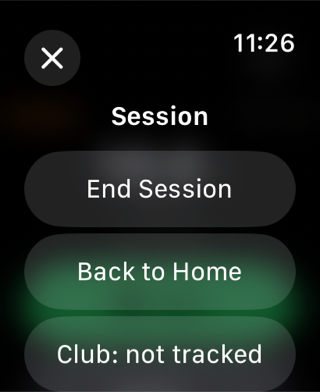
Start a session, log putts, and end or save it entirely from the watch — phone-optional logging.
5Training challenges Free Premium
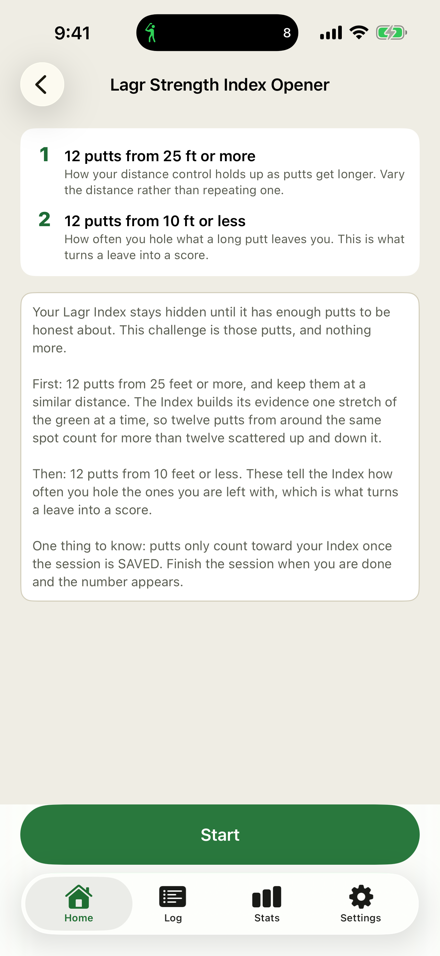
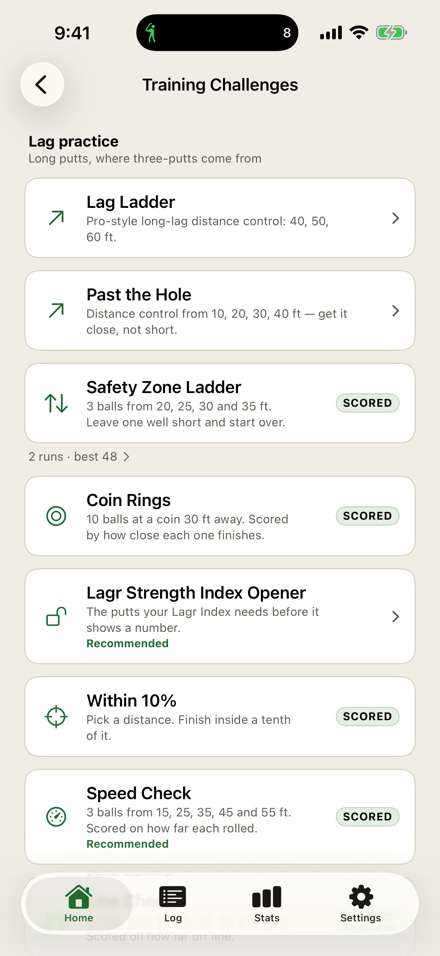
Guided drills that set a distance, score each ball, and move you along.
Free: the Lagr Strength Index Opener that sets your first number, plus two more.
Premium: the full catalogue — including Lag Ladder, the one the app is named for.
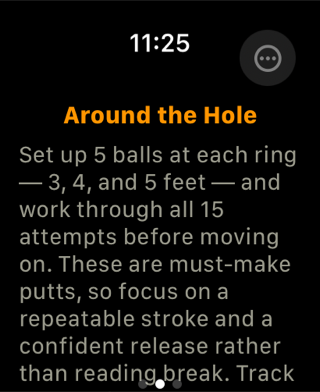
Apple Watch Run a challenge on the wrist
Challenges run start to finish on the watch — it sets each station’s distance and scores the balls.
6The Lagr Strength Index Free
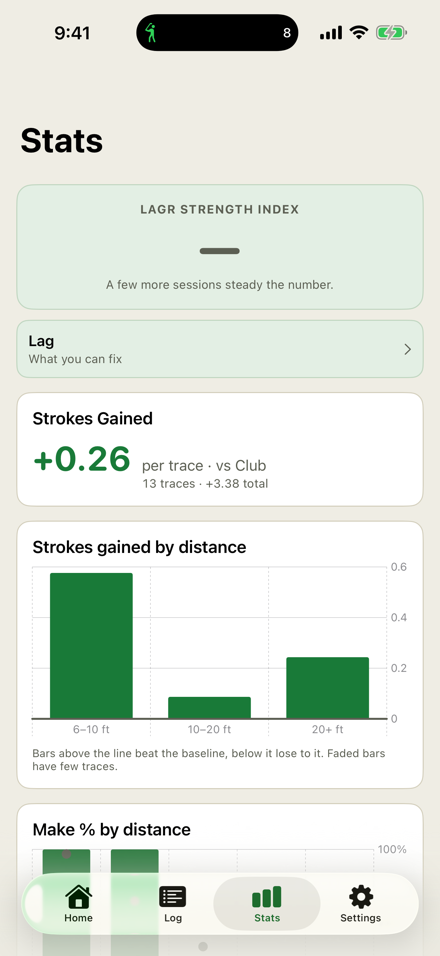
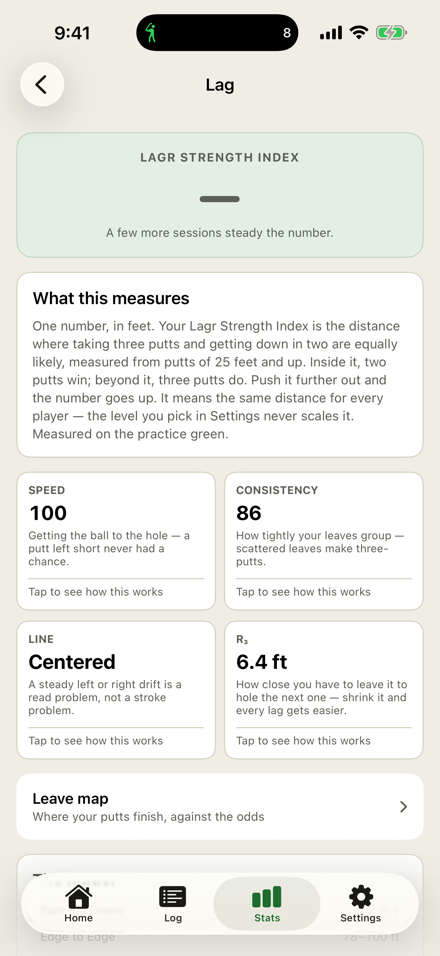
Your one number: the distance, in feet or metres, where you’re predicted to have a 50% chance of holing a lag putt in 2 or fewer putts. Inside that distance, getting down in two is the expectation; beyond it, a third putt creeps in. Push the number further out and your Index goes up.
- It warms up until 12 lag putts and 12 shorter putts are logged.
- Newer putts count for more, so one bad green can’t define you.
- It won’t name a distance it has no evidence near — it tells you where to practise instead.
Line, speed & consistency. Open the Lag page for the three habits behind the number:
- Speed — whether your lags tend to finish short or run past the hole.
- Line — a flag for a systematic left-or-right miss, so a push or pull shows up.
- Consistency — how tightly your lags cluster, good or bad.
Your bracket. Wherever the number lands, Home names the level it sits in — Short Lag, then Two-Putt Range, Long Range, Deep Range, Cross-Green, Edge to Edge, and Past the Green — so progress reads as climbing a ladder, not just a number sliding.
Tips. From your Index and those three habits, Lagr writes a short tip for what to work on next. Find it on the Home tab, just under your bracket. Premium
7Calibrating your stride Free
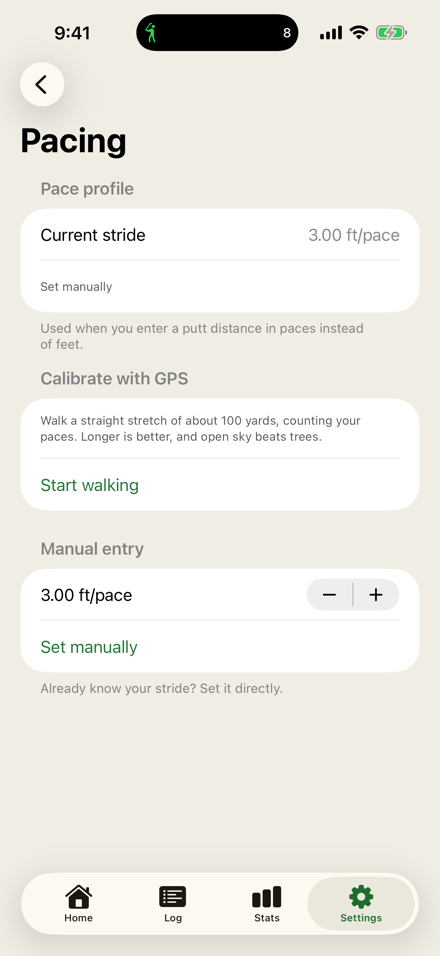
So you can pace off a putt and have Lagr turn steps into feet.
- Settings → Pace profile, tap Start walking.
- Walk a measured stretch and enter how many paces you took.
- Lagr stores your feet-per-pace; the location itself is never kept.
In a logger, pace off the distance and the start fills in — no measuring tape.
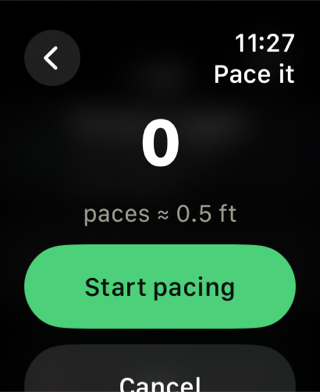
Apple Watch “Pace it”
On the wrist, tap Pace it and the watch counts your steps as you walk to the hole; only the count is used.
8Units, accuracy & format Free
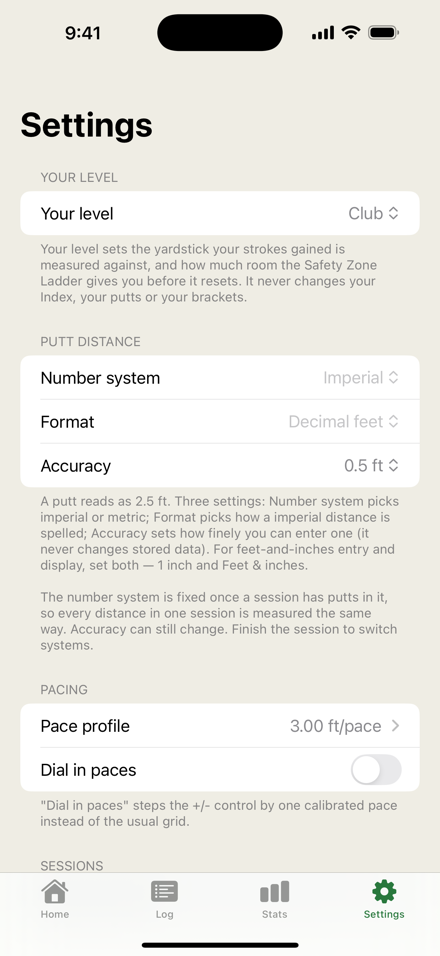
In Settings you choose how distances read and how finely you log:
- Units — feet/inches or metres/centimetres.
- Accuracy — the step you place to (e.g. 0.5 ft or 0.15 m).
- Format — how a distance is shown and spoken.
Everything is rounded only where it’s shown, so switching units never moves your data.
9Stats & the Home tab Free Premium
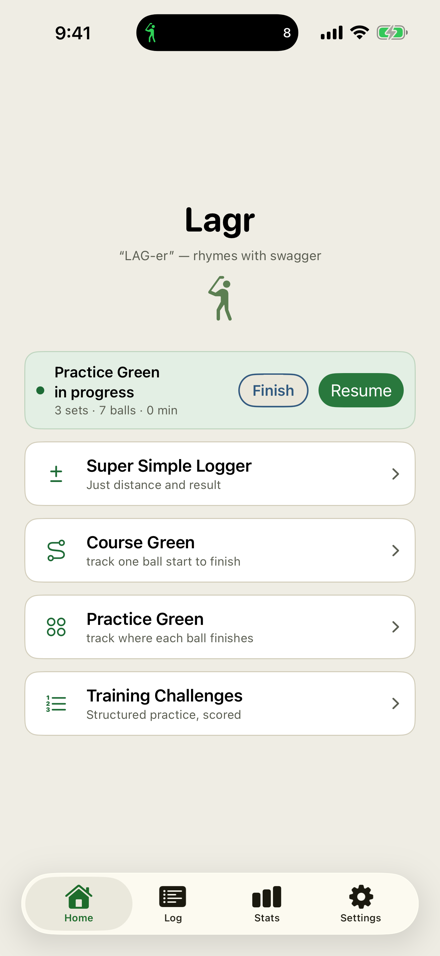
Home leads with your Index bracket and a tip about what to work on next.
Stats — free: the Lagr Strength Index and make percentage by distance.
Stats — Premium: strokes gained, putts to hole out, and three-putt avoidance.
By putter. Filter your stats to a single putter to compare your gamers head-to-head — make %, three-putt avoidance and the rest, per club. (The screenshots here are from an earlier build and don’t show the putter filter yet.)
Your level sets the yardstick. Strokes gained — and how much room a challenge gives you before it resets — are measured against a reference standard you pick in Settings → Your level. It never touches your Index, your putts or your brackets; it only decides what “even” means for the stats that compare you to a bar:
- Beginner — new to putting, or a higher handicap: a gentler bar, more room to grow.
- Club — a regular club golfer: the middle standard.
- Pro — a scratch or professional standard: the toughest bar.
Pick the one that matches how you putt today. You can change it any time; it only moves the compare-to-a-bar stats, never your logged putts.
10The Log tab Free
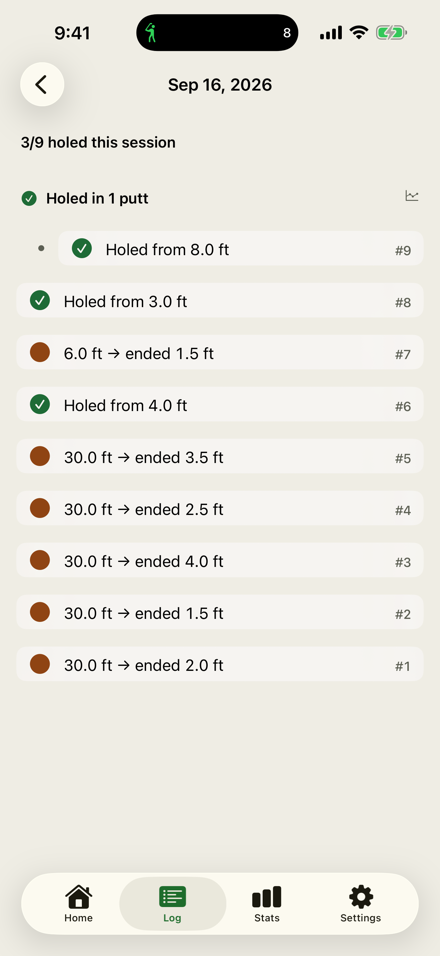
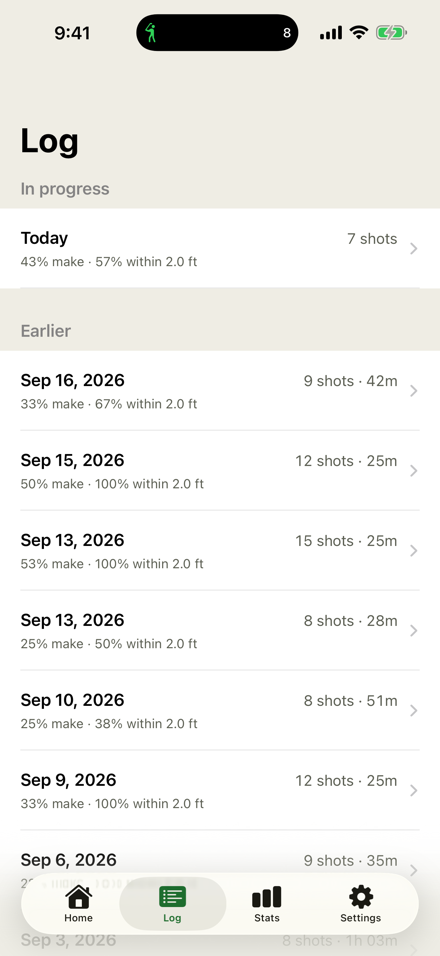
Every session you’ve logged, newest first. Tap one to see each putt — start, result and leave — and edit or delete anything that went in wrong.
11Settings, export & privacy Free
Settings is also where you look after your data:
- Export your putts to a CSV — one row per putt, ready for a spreadsheet or a backup you keep. It’s yours, and nothing leaves the device unless you send it.
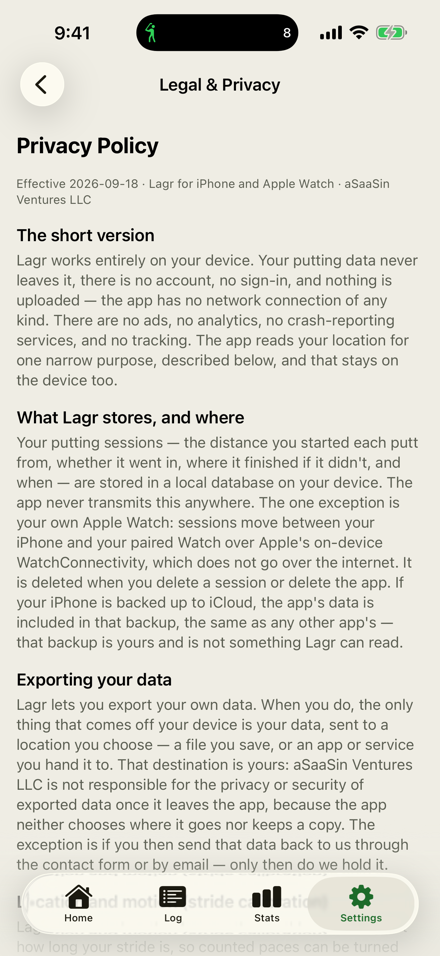
- Privacy policy and Contact / feedback open lagrapp.com in Safari.
| start_ft | holed | leave_ft | club | date |
|---|---|---|---|---|
| 24.0 | false | 2.5 | Newport 2 | Sep 18 |
| 2.5 | true | — | Newport 2 | Sep 18 |
| 31.0 | false | 3.0 | Spider | Sep 18 |